
Device support
CloudLibrary™ works with a huge range of e-reading devices, and we’re adding support all the time. Right now, you are able to view and download content on to the following recognized devices:
iOS App
iPad®
iPhone®
iPod touch®
Android App
Android™ Phones
Android™ Devices
Fire App
Fire
Fire HD
Fire HDX
Web
Most current version of Chrome, Firefox and Edge
E-Reader*
Most e-reader devices that are compatible with Adobe Digital Editions (ADE)
Kobo (compatible devices)
*CloudLibrary is not currently compatible with Kindle Paperwhites. If you would like to read CloudLibrary titles on your Kindle Paperwhite, please contact Kindle support and request that Amazon allow compatibility with CloudLibrary.
FAQ
General
Can I cancel a hold?
If you want to cancel a hold, go to the ‘My Books‘ page and click on ‘Holds.‘ This will show you the books you have on hold. Tap on the title that you would like to take off Hold and tap on the button ‘Remove Hold‘ button.
Can I listen to my audiobook offline?
Yes, offline listening is available in the mobile apps once an audiobook has been fully downloaded. Note: Traveling in and out of network coverage may result in a loss of connection of an active download or playing of an audiobook. You may need to the tap the download and/or play button to resume when this occurs.
Can I return an ebook early?
Yes, you can return a book early. Go to My Books and then click on Return.
Do I need to create an account specifically for CloudLibrary?
No, CloudLibrary will use your existing library account; there is no need to create a separate account.
How can I switch to another library account?
Go to the Account tab and select Cards. Add another card by selecting + Add New.
Once I have added an additional library card, how can I switch between accounts?
Navigate to Account > Cards. Tap the Library name/Card number and select Use Card to switch between accounts.
How do I change the viewing options (font size, margin size, night mode) while reading an ebook?
Ebook settings can be accessed by tapping in the middle of the page. Change viewing options by selecting “AA” in the upper right corner.
How can I create and retrieve bookmarks?
To create a bookmark, tap the middle of the page to bring up the menu, then tap on the bookmark icon in the top menu bar.
To retrieve a bookmark, tap the middle of the page to bring up the menu. Then tap the three horizontal lines icon on the right of the top menu bar. Tap Bookmarks where a list of your bookmarks will appear. Tap the Bookmark you want to go to.
How long can I keep an ebook? How many ebooks can I have out at one time?
Your library determines the check-out/ending policy for ebooks, which includes the number of days you can have the book checked out and the number of ebooks you can have checked out at one time.
How much space do I need on my device for an audiobook?
Files sizes of audiobooks vary. However, most audiobook files are less than 2 GB. The size of the book is displayed when selecting the book details of the title. This can be done by selecting the book cover art in multiple places in the apps.
I have an issue that is not addressed in this Support page. Where can I get more help?
Please contact your providing library for additional help.
What happens when I update my CloudLibrary app?
Improvements to the CloudLibrary app are made through app updates. You will not lose your checked-out books, holds, etc.
Why can't I find a particular ebook?
Your library most likely does not own a copy of the particular ebook. Libraries have to purchase an ebook in the same way they purchase physical books.
Why do I have to wait for an ebook? Aren’t ebooks unlimited?
Libraries have to purchase an ebook in the same way they purchase physical books. The publishers require us to abide by the one copy/one user model, just as we do with physical books.
Can I renew ebooks and audiobooks I have checked out?
Yes, as long as there are no holds on a title, a Renew button will appear in your My Books tab three days prior to your loan expiring.
How can I narrow my search results?
To narrow your search results, tap on the Search tab at the bottom. Tap the filter icon in the right corner to filter by Format, Availability, and Language.
How can I Advanced Search?
Perform an Advanced Search by tapping on the search bar at the top of the screen. Tap Advanced Search and apply filters as desired. Tap Search at the bottom when complete. Users can apply filters by Title, Author/Narrator/Editor, Series, ISBN, Date Published, Category, and Subject. By applying one or more filters, your search will return more focused results.
Why can’t I find my library in the library dropdown?
CloudLibrary contracts with libraries to offer our platform to their patrons. If you would like to use CloudLibrary with your library, please contact your library.
iOS
Can the CloudLibrary iOS App read the text on the screen aloud to me? (Text-to-Speech)
CloudLibrary provides text to speech compatibility through our iOS application.
By entering into accessibility mode you can navigate and check out books in CloudLibrary.
On the iOS device, go to Settings > Accessibility > VoiceOver and slide the button to the right to enable it.
Please note that once this feature is enabled, you tap a button or word to select it and double tap it to open or run it. Also, swiping will require two fingers, not one. Once that is complete, navigate to the CloudLibrary app. Check out and open a book and the book, will begin reading.
For more information about VoiceOver, see www.apple.com/accessibility/ios/voiceover/
For support on enabling VoiceOver, see https://support.apple.com/guide/iphone/turn-on-and-practice-voiceover-iph3e2e415f/ios
Why can’t I listen to my audiobook in Safari on my iOS device?
To listen to an audiobook on your iOS device, please download the iOS version of the CloudLibrary app.
Android
Does the CloudLibrary Android app have Text-to-Speech compatibility?
CloudLibrary eBooks can be successfully accessed using Android TalkBack mode. The functionality is specific to your device and can be activated in your accessibility settings.
For more information about Android TalkBack, see https://support.google.com/accessibility/android/answer/6283677
Fire tablet
Can I highlight when using my Fire?
Some older versions of Fire OS including Fire OS 5.7 do not support highlighting.
Kobo
Do I need to already have a Kobo account to access the integration?
An existing Kobo account is not required. After selecting Kobo connect in the app, you’ll be brought to a screen to sign in with an existing account or to create a new one. Kobo accounts can be accessed via Kobo’s website or with a Kobo e-reader.
Can I link multiple cards to my Kobo account?
Multiple CloudLibrary cards can be connected to your Kobo account; however, multiple Kobo accounts cannot be connected to the same CloudLibrary account.
- Up to five CloudLibrary accounts can be connected to a single Kobo account (beneficial for patrons with Card IDs at multiple libraries).
- Multiple Kobo accounts cannot be connected to the same CloudLibrary account (a family of five Kobo users with one CloudLibrary account, for example, would not be able to connect all five Kobo accounts to the one CloudLibrary account).
Why don’t I see a “send to Kobo” button next to a certain title?
EBooks without a “send to Kobo” button are not currently available in Kobo’s catalog or for transfer to Kobo. However availability statuses can change. The save-for-later feature can be used to monitor availability.
Audiobooks are not available to send to Kobo.
Where can I see a list of compatible devices?
A list of supported Kobo devices is available here.
I renewed a title in CloudLibrary but no longer see it in Kobo. What do I need to do?
Users who renew a title will need to send the title to Kobo again. Users can resend their title to Kobo any time after the ebook is renewed in the CloudLibrary app.
I returned my book early. Why is it still showing in my Kobo account?
Kobo users retain access to their CloudLibrary titles until the end of the lending period, even if the title is returned early in the app.
How can I disconnect my Kobo Account from CloudLibrary?
To disconnect, tap the Account tab (mobile) or click your Library Card ID in the top right corner (Web Patron). Select Kobo Connect and then Disconnect. Please note: when users disconnect, currently borrowed CloudLibrary titles will no longer be accessible in their Kobo account.
Can I read my eBook in both Kobo and the CloudLibrary app?
Titles sent to Kobo can be read in the CloudLibrary app, but last reading position will not sync between the two.
Where can I go to get support from Kobo?
Support for Kobo issues and devices will come from Kobo. Reach out to Kobo support at https://help.kobo.com/ or email help@kobo.com.
Web patron/E-reader
What if my browser saves the downloaded file as .txt?
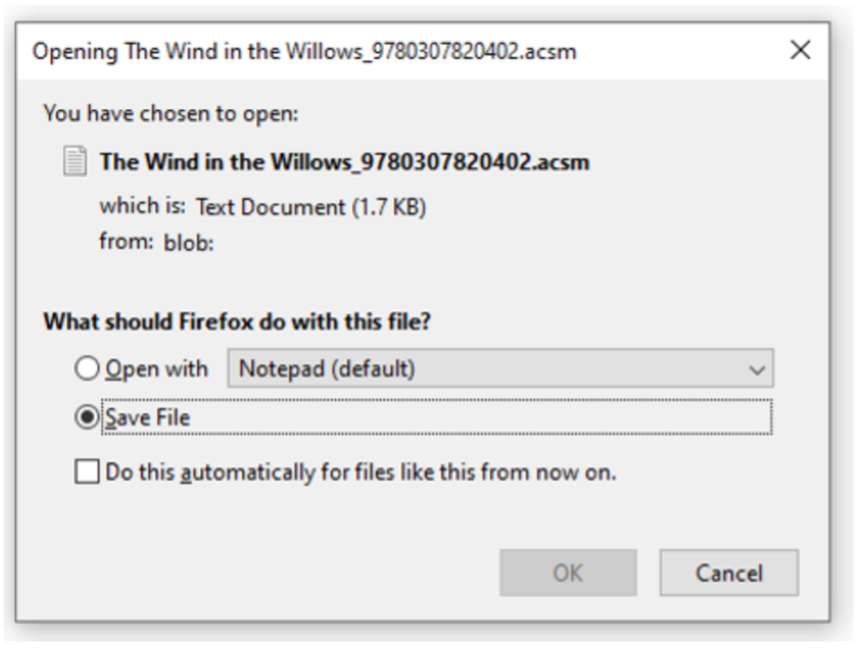
Sometimes browsers are set to save a file as a certain type. When you are downloading and the box below shows, please choose “save file” and use the default file name – titleofthebook_ISBN.acsm
Then open Adobe Digital Editions and continue from Add the Book to your e-reader to open the file.
Chromebook
Can I print pages from the ebooks or print my bookmarks?
No, there is no option to print content from ebooks at this time.
Common issues
I’m having an issue logging in and need to reset my password
CloudLibrary relies on your library’s patron management system for password management and doesn’t have the ability to update it. Please check your library’s website to see if they allow pin/password resets from there. If not, calling or visiting your library and asking them to help you update your pin should resolve the issue.
I need general troubleshooting steps to help resolve download issues and free up storage in the mobile app
Follow the process below to free up storage used by CloudLibrary on your device. It will also clear the cache to help correct errors caused by interrupted downloads, system updates, or improve general troubleshooting in the mobile app.
iOS device:
- Ensure a strong network connection
- Logout from the CloudLibrary app (by tapping on Account > Logout)
- Swipe away the CloudLibrary app
- Uninstall the app
- Power off the device for about 1-3 minutes (hold down the power button until the shutdown screen appears and choose shutdown.)**
- Power on the device
- Reinstall the CloudLibrary app from the App Store
- Login to the CloudLibrary app
Android device:
- Ensure a strong network connection
- Logout from the CloudLibrary app (by tapping on Account > Logout)
- Swipe away the CloudLibrary app
- Navigate to Settings on their Android device and select Apps
- From here, select CloudLibrary and navigate to Storage
- Select both Clear data and Clear cache
- Login to the CloudLibrary app
I’m receiving the Adobe Fulfillment E_ADEPT_REQUEST_EXPIRED message

First, check in the book you are having trouble with. Then, power off your device for 30-45 seconds. Power back on and check the book back out. If there is a hold list, please contact your local library for hold list adjustment.
If the error persists, confirm that the date and time on your device is current.
I’m receiving an E_ACT_TOO_MANY_ACTIVATIONS message
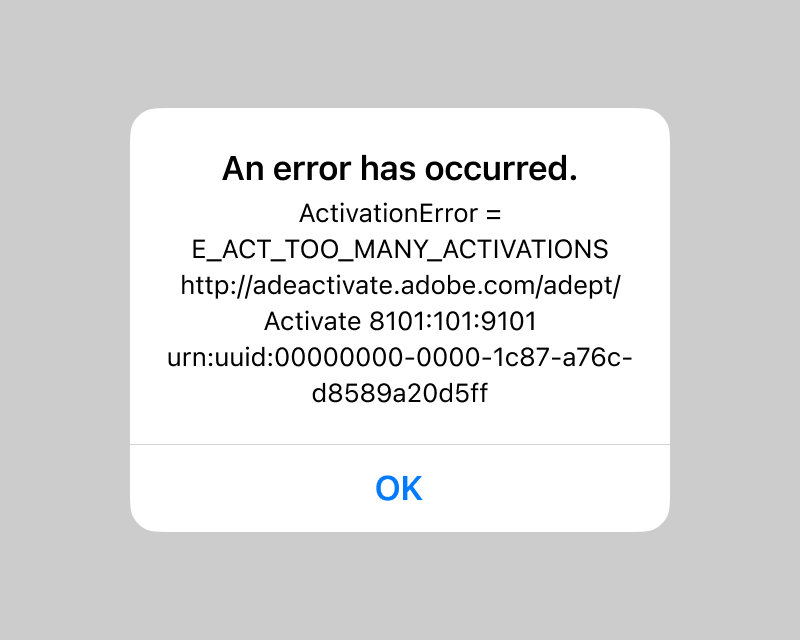
Please go to the Adobe Reset page and fill out the form to the best of your ability. We will submit the request on your behalf to Adobe.
I’m receiving the message E_STREAM_ERROR: CURL
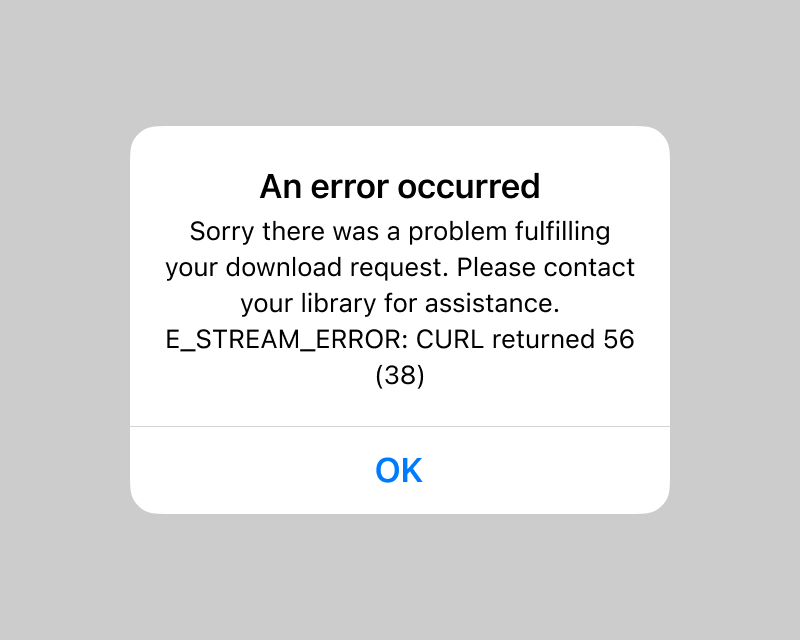
First, check in the book you are having trouble with. Then, power off your device for 30-45 seconds. Power back on and check the book back out. If there is a hold, please contact your local library for hold list adjustment.
I'm receiving the message E_ACT_NOT_READY
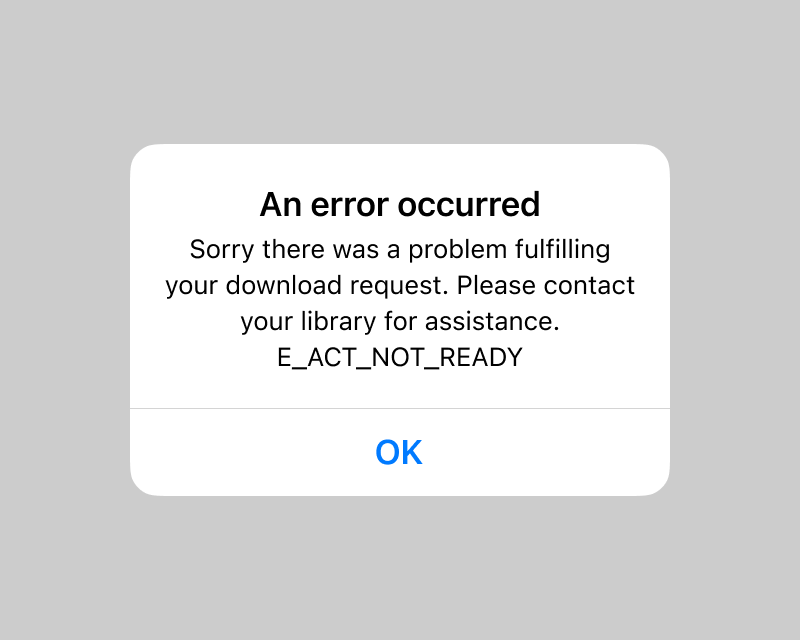
First, uninstall the CloudLibrary application from your device. Then, power off the device for 30-45 seconds. Next, power back on your device. Lastly, reinstall the CloudLibrary app.
I'm receiving the message E_AUTH_BAD_DEVICE_KEY_OR_PKCS12
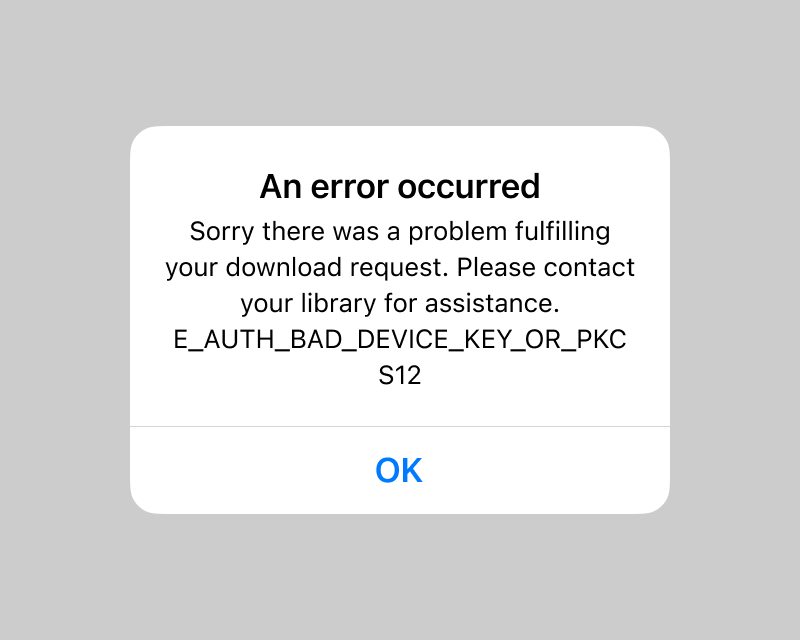
First, uninstall the CloudLibrary application from your device. Then, power off the device for 30-45 seconds. Next, power back on your device. Lastly, reinstall the CloudLibrary app.
I'm receiving a Playback Error message
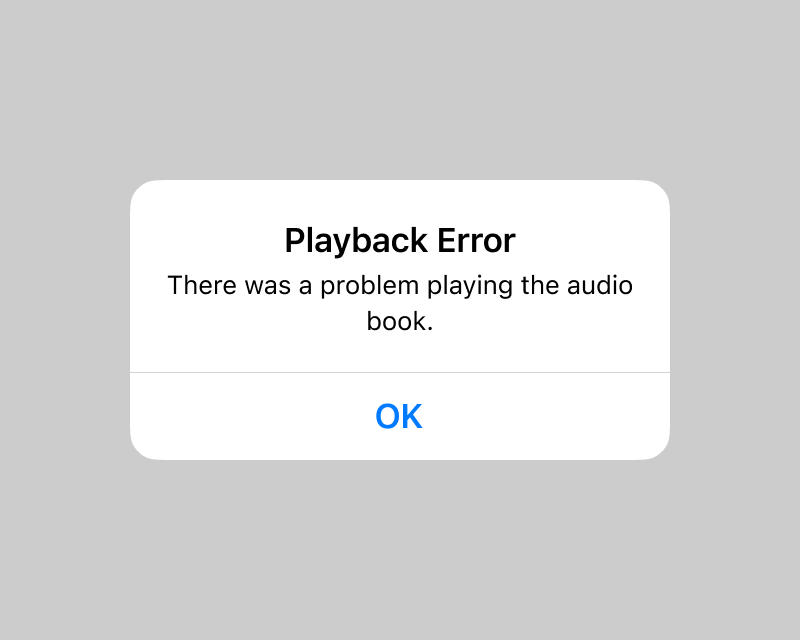
Tap OK to continue. If audio does not resume, log out of CloudLibrary and then log back in. This will prompt the e-audiobook to re-download.
I have a different issue and need further assistance
If a resolution is not detailed in the Support tab, contact your library for additional help. It may expedite your solution if you include the following information:
- Device/OS version
- CloudLibrary app version (Account > About)
- Any other relevant information